Written work, visible thinking
How to share handwritten work in an online lesson
Start with a clear photo or a steady camera view of one question. Check what the tutor can actually read, agree how to point to a line, and keep a simple fallback ready.

Make the reasoning visible, not just the answer
A tutor may hear a confident answer while missing the crossed-out calculation that explains a misunderstanding. Sharing the written steps lets the conversation focus on where an idea changed. The aim is readable working, not a sophisticated desk setup or a perfectly presented page.
Begin with the device your family already uses. A clear photograph can be enough for discussing a completed attempt; a steady live view can help when the tutor needs to see a new line being written. Agree the method before the lesson rather than assuming that a particular app, extra camera or digital pen is required.
The hero is an AI-generated scene with a fictional learner. It does not show a real pupil, staff member or actual lesson. The routines below are practical suggestions to agree with your tutor, not a claim about one platform being educationally superior.
The simplest route: one readable photograph
Place the page flat in even light, with the camera facing it as squarely as possible. Include the question number and the relevant working, but not unrelated pages or personal information. Move a lamp or the paper if your hand casts a shadow across the numbers.
Open the photograph and zoom in before sending it through the agreed channel. Can you distinguish a minus sign from a ruled line, a decimal point from a mark on the paper, and a small exponent from the number beside it? If not, retake the picture or photograph the question in two clearly labelled parts.
For a longer problem, label images Q3-part1 and Q3-part2 rather than sending several unnamed photos. Leave mistakes visible. The tutor needs to understand the original attempt, so do not ask your child to recopy the page neatly and accidentally remove the evidence of how the answer was reached.
When a live camera view is more useful
If you already have a suitable stable support, position the camera so the relevant writing area stays in frame. Keep the device secure, with cables away from hands and drinks. Do not balance a phone precariously above the child or the work; a photograph is a reasonable alternative when a safe arrangement is unavailable.
Test the view with a harmless line of practice writing. Ask the person at the other end to read it back rather than relying on your own preview. Write on the side of the page least obscured by the writing hand, and pause after a step so both people can refer to the same line.
Zoom's current documentation includes a second-camera sharing option in supported desktop setups and camera or photo sharing on mobile. Controls depend on device, app and account settings, and a host can restrict sharing. Ask the tutor to confirm the available route; do not spend the learning time searching for a button that your setup does not offer.
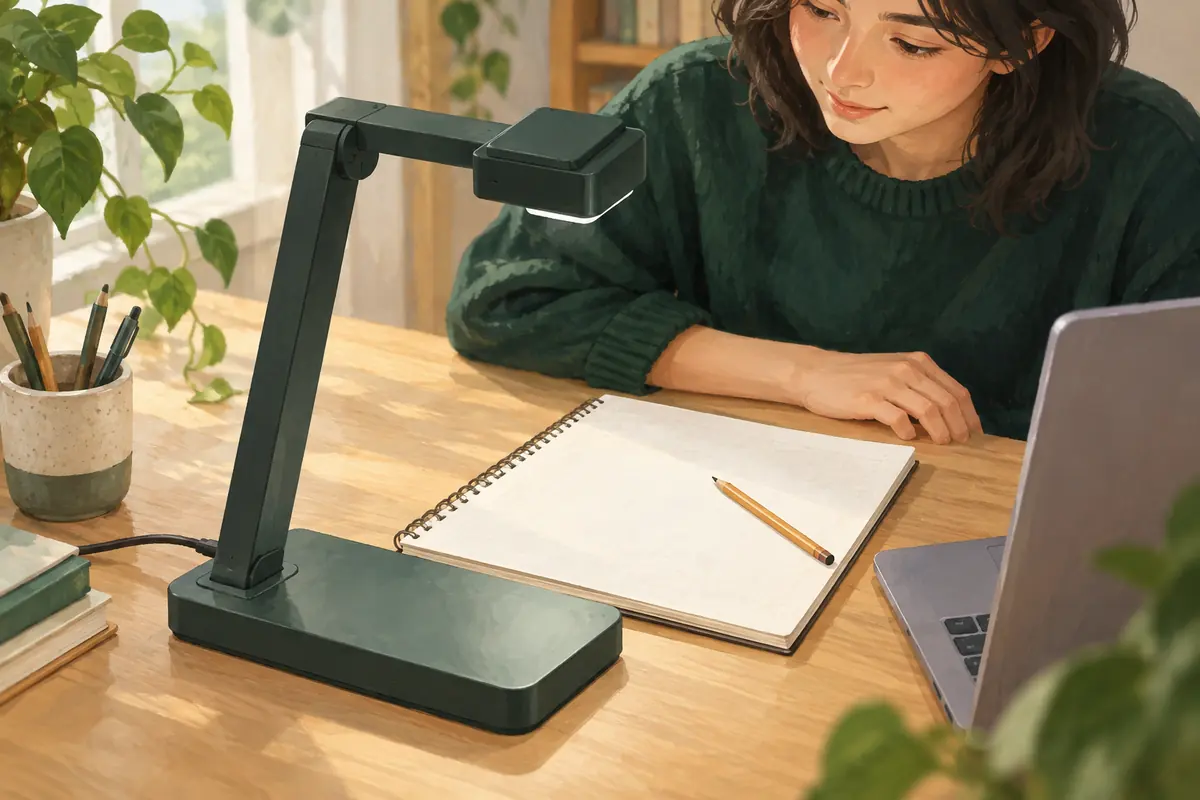
AI-generated equipment illustration, not a required shopping list or a photograph of our teaching setup. Use existing equipment only when it can be positioned securely.
Keep a fallback and a privacy check
| What goes wrong | Try first | Simple fallback |
|---|---|---|
| Small symbols cannot be read | Bring the relevant section closer and improve lighting. | Send a checked close-up photograph. |
| The image keeps moving | Put the page flat and secure the camera safely. | Use a still image instead of live video. |
| Screen sharing is unavailable | Ask the host whether sharing is enabled. | Use the previously agreed file-sharing channel. |
| Live video repeatedly freezes | Pause new work and confirm which line both people can see. | Discuss a previously received image, or agree how to resume. |
Before sharing a screen, close unrelated tabs and notifications, and select only the intended window where the platform permits. Before sending a photo, remove names, school identifiers and information about other children if they are not needed. Use the parent-approved channel and do not post the work publicly to make it easier to access.
Avoid recording by default. If a recording is proposed, agree its purpose, consent and handling first. A labelled work sample and a short note about the question can be more useful than keeping an entire lesson video.
Test the routine before choosing more equipment
The Education Endowment Foundation's remote-learning evidence review emphasises teaching quality and access, rather than treating delivery technology as the main ingredient. In practice, ask whether the tutor can see the difficulty, explain a next step and check the child's response. A sharper camera alone does not establish that those things are happening.
Use the online lesson service page to discuss the subject, devices available and how handwritten work could be shared. For a family based in Gianyar considering remote sessions alongside possible home visits, the Gianyar arrangements page helps frame the location discussion. Exact-address travel arrangements and tutor availability still need confirmation; this guide assumes neither a particular local connection speed nor guaranteed coverage.
For an enquiry, provide your child's age and year group, school, curriculum and area, plus a brief description of the task and available device. Ask for the preferred way to share one non-sensitive sample. That is enough to start planning without buying new equipment first.
Frequently asked questions
Does my child need a tablet and digital pen?
Paper with a readable photograph or camera view can support many discussions. Ask the tutor what the particular task requires and test your existing device first. A tablet is an option, not a universal requirement.
What if the handwriting looks reversed on my screen?
Ask the recipient to read a short test line. A mirrored local preview does not necessarily show what they receive. If the shared work is reversed or unreadable at their end, use a correctly oriented photograph while you check the camera settings.
Related
Message us on WhatsApp: +62 858 6969 6869 · info@privatetutoringbali.com · We reply within one working day.
Sources and further reading
Published by Private Tutoring Bali. Sources and corrections.